Notion is a workspace where you write pages and keep lists of things. The easiest way to start is with one page and one small database, such as a weekly plan, and nothing more. Below is how to build that, what a database is, what Notion's own help pages say its AI features can do, and how to share safely. Notion changes its menus and plans, so use the official pages at the end to confirm current steps.
Start with a page, not a system
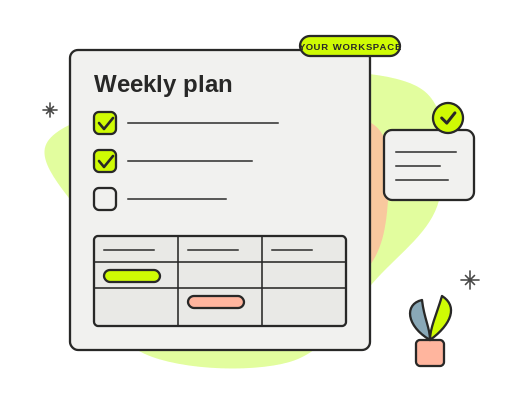
New users often try to build a perfect setup on day one and abandon it. A better start is a single page you will actually open each morning. Create a page, give it a clear title such as "My week", and write a few lines. Type plain text, add a heading and a checklist. That alone is useful, and it teaches you how the editor feels before you add anything clever.
What a database is, in plain words
Notion's help describes databases as collections of pages that help you manage and organise multiple items in one place. Each item in a database is a full page, so you can open it and add text or images. Each item also carries properties, which are labelled fields such as a date or a status. A view is simply a way of showing the same items, for instance as a table, list, board or calendar. Tables are the default.
If you know spreadsheets, think of a table where every row opens as a page of its own.
Build a simple weekly plan database
Notion's help gives two starting points. Create a new page and, under "Get started with", choose "Table", or open an existing page and type /database. Then try this small design:
- Name the database "Weekly plan".
- Keep the first column as the task name, since the first column holds your page names.
- Add a property called "Due date" and choose the Date type, as the help page describes.
- Add a property called "Status" and give it a few options, for example "To do", "Doing" and "Done". The help page mentions an "Add an option" choice in the property menu for creating labels like these.
- Add a view as a board, grouped by status, if you like moving cards across. Notion's help says you can have several views of the same data.
Check the exact menu wording in Notion, because Notion's pages describe slightly different routes in different places.
A worked example week
Here is a made-up week for someone who runs a small office, entered as items in the database. Each is a page you can open for notes.
- Monday: send the agenda for the Thursday team meeting. Due Monday. Status: To do.
- Tuesday: check the stationery order against the delivery note. Due Tuesday. Status: To do.
- Wednesday: update the shared holiday calendar. Due Wednesday. Status: To do.
- Thursday: run the team meeting and write three action points. Due Thursday. Status: To do.
- Friday: tidy the week, move anything unfinished to next week. Due Friday. Status: To do.
On Friday you filter or look at the board, see what is still in "To do", and decide what carries over. That small review loop is the real benefit. The tool simply keeps it in one place.
Where AI fits in, according to Notion's own pages
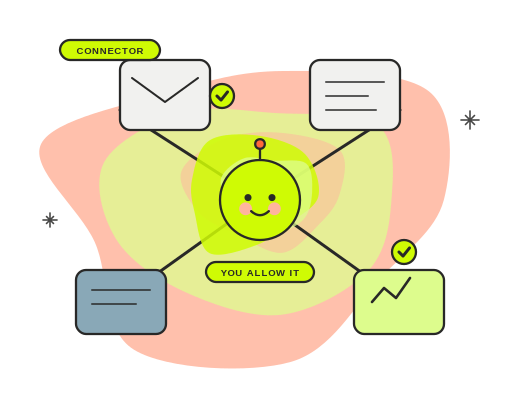
Notion's help pages describe several AI features, and their availability depends on your plan. The Notion AI FAQ says Notion AI can search your workspace and connected apps, write and edit inline, translate pages, create databases, auto-fill properties and write formulas. Its help page says Notion AI is available on Business and Enterprise plans, with a limited number of complimentary responses for Free and Plus users.
On the database page, the help says you can choose "Build with AI" when creating a database. You describe the database you want, review the preview, ask for changes, select "Continue", choose how to visualise the items and select "Done". The same page lists limits. It says AI can create new databases but cannot edit existing ones, add pages to them or set up automations, forms, charts or database templates. The FAQ says Notion AI follows workspace access rules and only uses information you have permission to see. You can accept or discard its changes or ask it to try again.
Good to know
Treat anything AI creates as a first draft. Read it, compare it with what you meant, and discard what is wrong. You are still the editor.
Share safely
Notion's sharing help says to select the "Share" button at the top of a page. The access levels it lists include "Full access", "Can edit", "Can comment" and "Can view". Under general access you can choose "Only people invited", a workspace-wide option, or "Anyone on the web with link". The page notes that anyone with a public link can open it, even without a Notion account. You can set a link to expire, and a new subpage takes on its parent's permissions. People can also sometimes reach a page indirectly if it is linked from a more widely shared page.
- Start with "Only people invited" and widen only if you need to.
- Give "Can view" or "Can comment" unless someone really needs to edit.
- Before sharing a parent page, check what sits inside it.
- Review who has access when a project ends.
Never type real customer, patient, bank, account, card, ID, password or other personal or confidential information into an AI tool unless your employer has approved that exact tool. That includes Notion AI. A page full of real client notes is not a good place to experiment. Use made-up or anonymised examples such as "Example Tea Company" while you learn, and ask your IT team what your organisation allows.
Mistakes beginners make
- Building too much at once. Start with one database and add a second only when you feel the need.
- Too many properties. Each one is something to fill in, so keep the ones you will use.
- Pasting sensitive information into pages that are widely shared.
- Accepting AI output without reading it.
Official pages to check
- notion.com/help, "Intro to databases in Notion" and "Create a database in Notion".
- notion.com/help, "What is Notion AI? FAQs".
- notion.com/help, "Sharing & permissions settings in Notion".
Plans, limits and menus change, so confirm details there before you rely on them. If you would like guided practice, our beginner lessons build this weekly plan step by step with safe example data.
Common questions
What is the difference between a page and a database in Notion?
A page is a document you can write on. Notion's help describes a database as a collection of pages, where every item you add is itself a page with properties such as dates or status. You can view the same database as a table, board, list, calendar or gallery.
Is Notion AI free?
Notion's help pages say Notion AI is available on Business and Enterprise plans, and that Free and Plus users get a limited number of complimentary AI responses. Plans and limits change, so check Notion's current pricing and help pages.
Can I make a page public by accident?
Yes, if you choose a general access setting that allows it. Notion's sharing page lists "Only people invited" as the narrowest option and "Anyone on the web with link" as the widest, so check the Share menu before you send a link.
Official pages to check
AI tools change quickly. Check the vendor's current help page before you act, and review anything an AI tool produces before you rely on it.