To write a better email with an AI assistant, tell it who you are writing to, what you need from them, any facts it must include, and how long and how formal the email should be. Ask for a draft, then read it, correct anything it got wrong, and send it yourself. The tool saves time on structure and wording; it cannot know your facts, your relationship with the reader or your organisation's rules, so those stay with you.
What assistants are good at in email
- Turning rough notes into a clear first draft.
- Shortening a long message without losing the key request.
- Adjusting tone, for example warmer, firmer or more formal.
- Offering several subject lines or openings to choose from.
- Summarising a long thread into decisions and open questions before you reply.
Step by step: draft a reply
- Decide the single outcome you want. For example, you want the reader to approve a date by Thursday.
- Write your own bullet notes of the facts: dates, amounts, names of things, what has already been agreed.
- Tell the assistant who the reader is and your relationship, such as a colleague you know well or a customer you have not met.
- Ask for the format and limits: length, tone and whether to include a subject line.
- Read the draft against your notes. Check every date, number and name, and delete anything you did not say or cannot support.
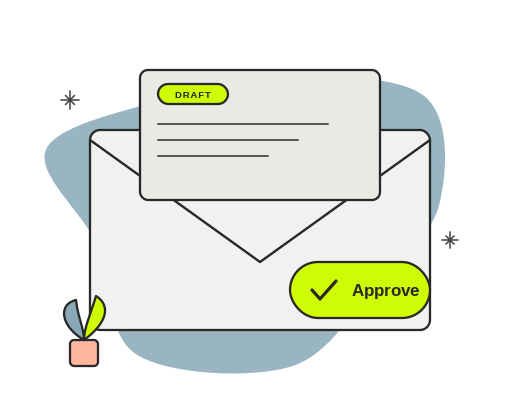
- Edit into your own voice, then send from your own email account.
A worked example: before and after
Your rough notes are: "workshop moved from 12th to 19th, room still booked, need people to confirm by Thursday, sorry for the hassle."
Prompt: "Write a short email to my team of twelve colleagues. The workshop has moved from 12 [month] to 19 [month]. The room is still booked. I need each person to confirm they can attend by Thursday. Apologise briefly. Friendly and clear, under 90 words, with a subject line."
Before, as a typical rough draft: "Hi all, just to let you know the workshop has been moved, it was the 12th and now it will be the 19th, the room is still booked though, let me know if you can come, thanks, sorry about this."
After, a typical AI draft you then check: "Subject: Workshop moved to 19 [month]. Hi all, the workshop has moved from 12 [month] to 19 [month]. The room is still booked. Please reply by Thursday to confirm you can attend. Sorry for the change, and thank you for being flexible." The result is clearer because the date change, the action and the deadline are each easy to find. Your job is to confirm the dates and the weekday are right, because the assistant is only repeating what you gave it.
Useful follow-up requests
- "Make it half the length."
- "Make the request clearer and put it in the first sentence."
- "Soften the tone without apologising more."
- "Give me three subject lines under eight words each."
- "Does anything here sound blunt or ambiguous?"
Good to know
Paste two or three sentences you wrote in the past and say "match this style". Assistants usually pick up your rhythm and level of formality better from an example than from a description.
Using it to read, not only write
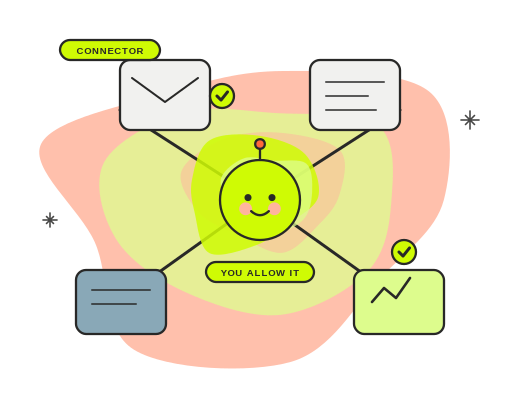
A long thread can hide the actual question. If your organisation approves the tool for it, you can ask for a summary of who asked for what and what is still open, then write your reply from that. Remove names and sensitive details first when the tool is not approved for work correspondence. Check the summary against the thread, because summaries can drop a detail that matters, such as a condition or a deadline.
What to check before you send
- Facts: dates, amounts, names, attachments mentioned and anything promised.
- Tone: would you say this to the person face to face?
- Commitments: has the draft agreed to something you did not intend, such as a refund or a deadline?
- Recipients: right people in To, Cc and Bcc.
- Confidentiality: nothing private or sensitive has slipped in.
What not to paste
Do not paste confidential or personal data, such as customer details, contract terms, passwords or health information, into a tool your organisation has not approved. Use placeholders like [customer], [date] and [amount] in your prompt and fill in the real details yourself once you have the draft. Features, privacy settings and any built-in email integrations differ by tool and plan and change often, so check your organisation's policy and the vendor's current information.
Keep a few templates
Once a prompt works, save it with blanks for the reader, the facts and the deadline. Common candidates are meeting follow-ups, polite chasers, declining a request and sharing bad news. Reusing a tested prompt gives you a more consistent starting point. Our email course shows how to build a small set for the messages you send most.
Common questions
Can ChatGPT or Claude write an email for me?
Yes, they can produce a draft quickly if you tell them who it is for, what you need and how long it should be. You should still read it, add the real facts and make sure it sounds like you before sending.
How do I make an AI-written email sound like me?
Paste a short example of your own writing and ask the assistant to match its tone and sentence length. Then edit the draft in your own words.
Is it safe to paste a customer's email into an AI tool?
Only if your organisation has approved the tool for that use. Otherwise remove names, contact details and other identifying information first, or write the prompt from scratch.
Official pages to check
AI tools change quickly. Check the vendor's current help page before you act, and review anything an AI tool produces before you rely on it.