Connectors, MCP and agents
Add Connectors to Claude, Step by Step
Open the connectors list in Claude, connect one service safely, try a small task and turn it off.
- Beginner
- 4 lessons
- 26 minutes
What you will be able to do
- Find the connectors list and read what a connector can do
- Connect one trusted service with a test account
- Review what Claude does and turn the connector off
- Read the problem and what you will do.
- Follow the short steps in your AI tool.
- Check the result before you use it.
What is inside
- 1
Open the connectors list
5 min · Beginner
The problem. You hear that Claude can connect to other apps, but you cannot find where. Menus also change from time to time.
You will. Open the connectors list and read what one connector can do.
Before: you are not sure where connectors live. After: you have the list open and have read the read and write capabilities of one connector.
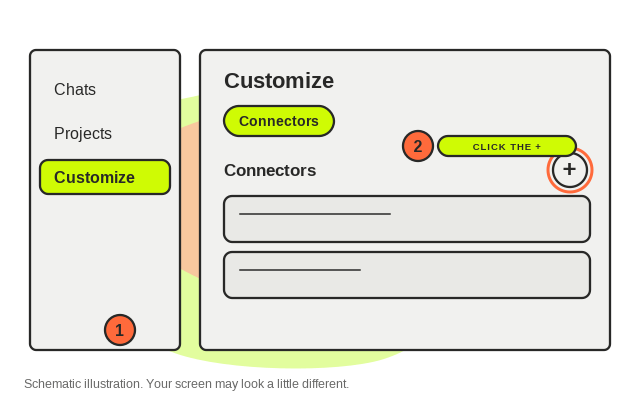
Open Customize, then Connectors, and click the plus button. This is a schematic drawing, not a screenshot, so your screen may look different. - 2
Add and connect one service
7 min · Beginner
The problem. Connecting feels like handing over your keys. You want to do it carefully, and only for something you trust.
You will. Connect one official connector using a test account.
Before: worry about giving too much access. After: one connector joined with a test account, and you have read what it asked for.
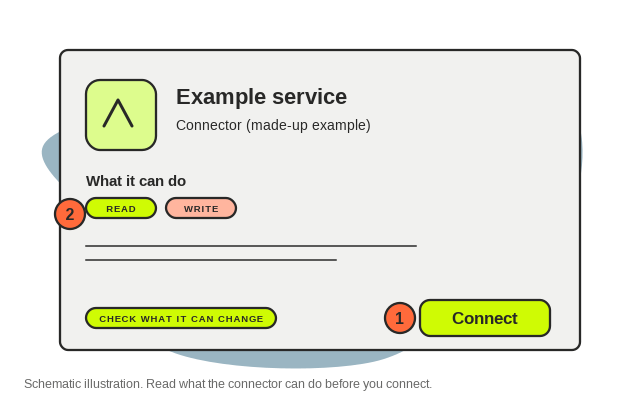
Read what a connector can do before you connect it. This is a schematic drawing, not a screenshot, so your screen may look different. - 3
Give Claude a first safe task
8 min · Beginner
The problem. Now Claude can reach your service. A first task that changes things could cause a mess.
You will. Run one read-only task and review it before anything is changed.
Before: you might ask Claude to change things at once. After: you ask it to only look, and to say what it plans before it acts.
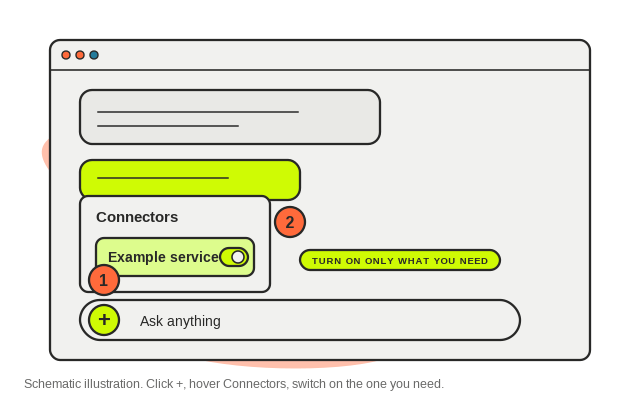
In a chat, click plus, hover Connectors and switch the one you need on. This is a schematic drawing, not a screenshot, so your screen may look different. - 4
Review and turn it off
6 min · Beginner
The problem. A connector you forgot about still has access. Leaving it on is like leaving a door unlocked.
You will. Turn the connector off in a chat, then disconnect it in Customize.
Before: connectors stay connected forever. After: you switch it off for the chat and disconnect it when you are done.
To stop using it, switch it off in the same place. This is a schematic drawing, not a screenshot, so your screen may look different.